
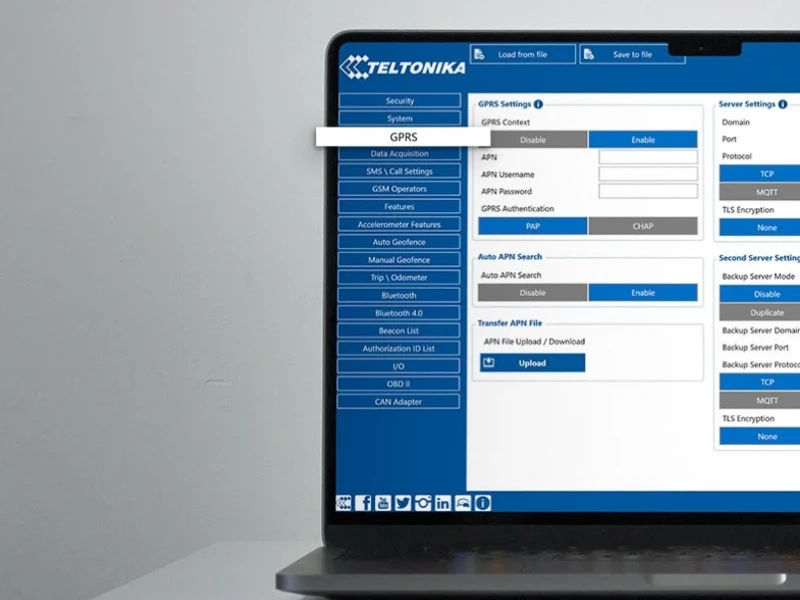
Here is how you can get your tracker up and running using a Windows PC.
1. Preparation and Connection
Before opening the software, ensure your hardware is ready.
Insert SIM and Battery: Gently remove the device cover. Insert a Micro-SIM card (with PIN request disabled) and connect the internal battery.
Install Drivers: Download and install the Teltonika COM Port Drivers so your computer can recognise the tracker via USB.
Connect to PC: Power up the tracker (8–32V DC) and connect it to your computer using a Micro-USB cable. Alternatively, some models support pairing via Bluetooth using the default password 5555.
2. Launching the Configurator
The software does not typically require a traditional installation but runs directly from the extracted files.
Open the App: Launch Configurator.exe. Ensure you have MS .NET Framework 4.6.2 or newer installed on your Windows OS. Select Your Device: Once the software detects your connected tracker, it will appear on the home screen. Click on the device image or name to enter the configuration menu.
3. Critical Configuration Settings
While there are dozens of options, these sections are the most important for basic tracking functionality:
GPRS Settings: This is where you connect the device to the internet and your server.
APN: Enter the Access Point Name provided by your SIM card provider (and login/password if required).
Server Details: Enter the Domain/IP Address and Port of your tracking platform
Data Acquisition: Define how often the tracker should collect data. You can set different intervals for “Moving” vs. “On Stop” to save data and battery. (if using remote immobilisation feature we recomend setting to no more than 60 seconds when not moving)
System Settings: Ensure the Codec is set to Codec 8 or Codec 8 Extended depending on your server’s requirements.
4. Saving Your Changes
Your changes are not permanent until you send them to the device hardware.
Save to Device: Click the Save to device button. Wait for the “Parameters saved” confirmation message.
Backup: It is a good idea to click Save to file to keep a backup of your configuration for future use or for setting up additional trackers.
Common Troubleshooting
Device Not Detected? Re-check your USB cable and ensure the Teltonika COM drivers are installed in your Windows Device Manager.
No Data on Server? Verify your APN settings and ensure the SIM card has an active data plan with the PIN disabled.